HP Laptop Battery Replacement: How to Find the Right Battery Safely
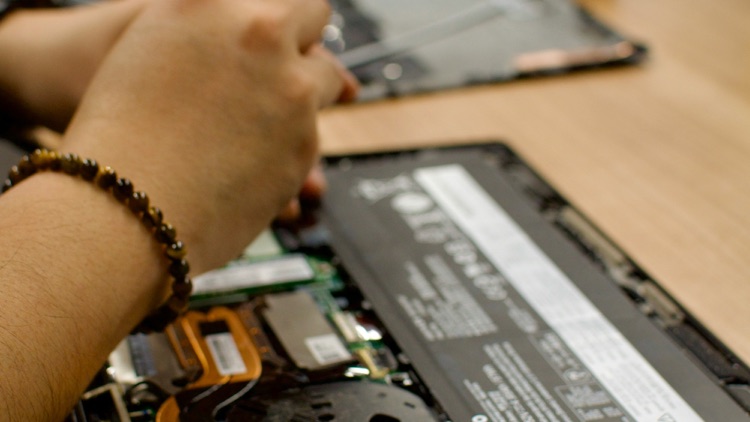
An HP laptop battery usually needs attention when runtime becomes very short, the laptop shuts down suddenly, the battery will not charge fully, or Windows reports poor battery health. Replacing the battery can extend the life of the laptop, but the part must be matched carefully. HP has many product lines, and similar model names can use different battery packs.
If you are comparing replacement options, start with official HP information and then check compatible sellers. A category page for an HP Laptop Battery helps only when you confirm the exact model and battery part number before ordering.
Check Whether Replacement Is Needed
Before buying a battery, run a battery health check. HP laptops often support battery diagnostics through HP Support Assistant, BIOS/UEFI tools, or Windows battery reports. These tools can show cycle count, full charge capacity, and whether the battery is failing.
Short runtime alone is not always proof that the battery is defective. Heavy software, screen brightness, power settings, background apps, a weak charger, or a damaged charging port can also reduce runtime. If the laptop does not charge at all, test the charger and port before assuming the battery is the only issue.
If the battery is swollen, stop using the laptop and do not press or puncture it. Swollen lithium batteries require careful handling and proper disposal.
Find the Exact HP Model
HP model names can be confusing. “Pavilion,” “Envy,” “Spectre,” “EliteBook,” “ProBook,” and “Omen” are broad families, not exact battery identifiers. Look for the full model number, product number, or serial number. HP’s support website and Battery Finder can help identify official replacement parts.
You may also find the spare part number in a service manual or printed on the original battery. If the laptop has an internal battery, do not open it unless you are comfortable doing so. A repair technician can identify the part safely.
Match the Battery Part Number
The safest way to order is by part number and compatibility list. A compatible HP battery listing should show the battery code, voltage, capacity, and supported models. Compare these details with your current battery or official HP documentation.
Do not rely on a vague listing that says “fits HP laptop.” That is too broad. A battery may look similar but have a different connector, screw position, or voltage. Forcing the wrong battery into a laptop can damage the device.
Compare Official and Third-Party Options
Official HP replacement parts are the most direct compatibility reference. Third-party sellers may offer broader availability or lower prices, but buyers should check warranty, return policy, product photos, and customer support. The seller should be able to confirm compatibility if you provide the full model and part number.
When comparing listings, check:
- HP model and product number
- Battery spare part number
- Voltage and capacity
- Connector and shape
- Warranty period
- Return policy
- Shipping restrictions
- Support response quality
If a third-party listing does not provide enough information, ask before buying.
Capacity and Runtime Expectations
Battery capacity is usually listed in Wh or mAh. Higher capacity may mean longer runtime if it is designed for the laptop, but it is not always better. The battery must fit the chassis and match the electrical requirements. A slim HP laptop may not accept a larger pack.
Also remember that runtime depends on capacity, screen brightness, processor load, Wi-Fi, external devices, battery age, and power settings.
Installation Safety
Some older HP laptops have removable batteries. Many newer models use internal batteries under the bottom cover. Internal replacement may require removing screws, disconnecting cables, and handling fragile clips. If you are not comfortable with this work, use a qualified technician.
Before installation, turn off the laptop and disconnect power. Do not use metal tools near the battery pack. Do not bend or puncture the battery. If the old battery is swollen, do not force the cover closed or keep charging the laptop.
After installation, fully charge the battery and follow HP or seller guidance. Battery percentage readings may need a few cycles to stabilize.
When Replacement May Not Be Worth It
Battery replacement is usually worthwhile when the laptop still performs well and the cost is reasonable. It may not be worthwhile if the laptop has motherboard issues, a broken charging port, severe overheating, damaged screen, or outdated performance that no longer fits your needs.
For office and school laptops, battery replacement can be a cost-effective repair. For business fleets, keeping a record of model numbers and part numbers can make future replacements easier.
Final Checklist
Before buying, confirm:
- Full HP model number
- HP product or serial reference
- Original battery part number
- Voltage and capacity
- Physical shape and connector
- Seller warranty and return policy
- Safe installation plan
Final Advice
Replacing an HP laptop battery is not difficult when the part is correctly identified, but guessing is risky. Use official HP resources to confirm the model, compare part numbers carefully, and choose a seller that provides clear compatibility information. If the battery is swollen or the laptop uses an internal pack, handle the repair cautiously or use a technician.